
Version History
Learn how to manage, view, and restore previous versions of your Libra projects
Version History
Keep track of all changes to your project and go back to any previous version
What is Version History?
Think of version history like a photo album of your project. Every time you ask Libra to make changes, it takes a "photo" (creates a version) of your project. You can look back at these "photos" anytime and even go back to how your project looked before.
What Can You Do with Versions?
With version history, you can:
- Go back: Return your project to an earlier version
- Make copies: Create a copy of any version to try different ideas
Version management interface - Interacting with versions of your project
Going Back to an Old Version
When you "restore" to an old version, here's what happens:
- Your project goes back to exactly how it was at that time
- All the newer versions after that point get deleted forever
- You can start making new changes from that old version
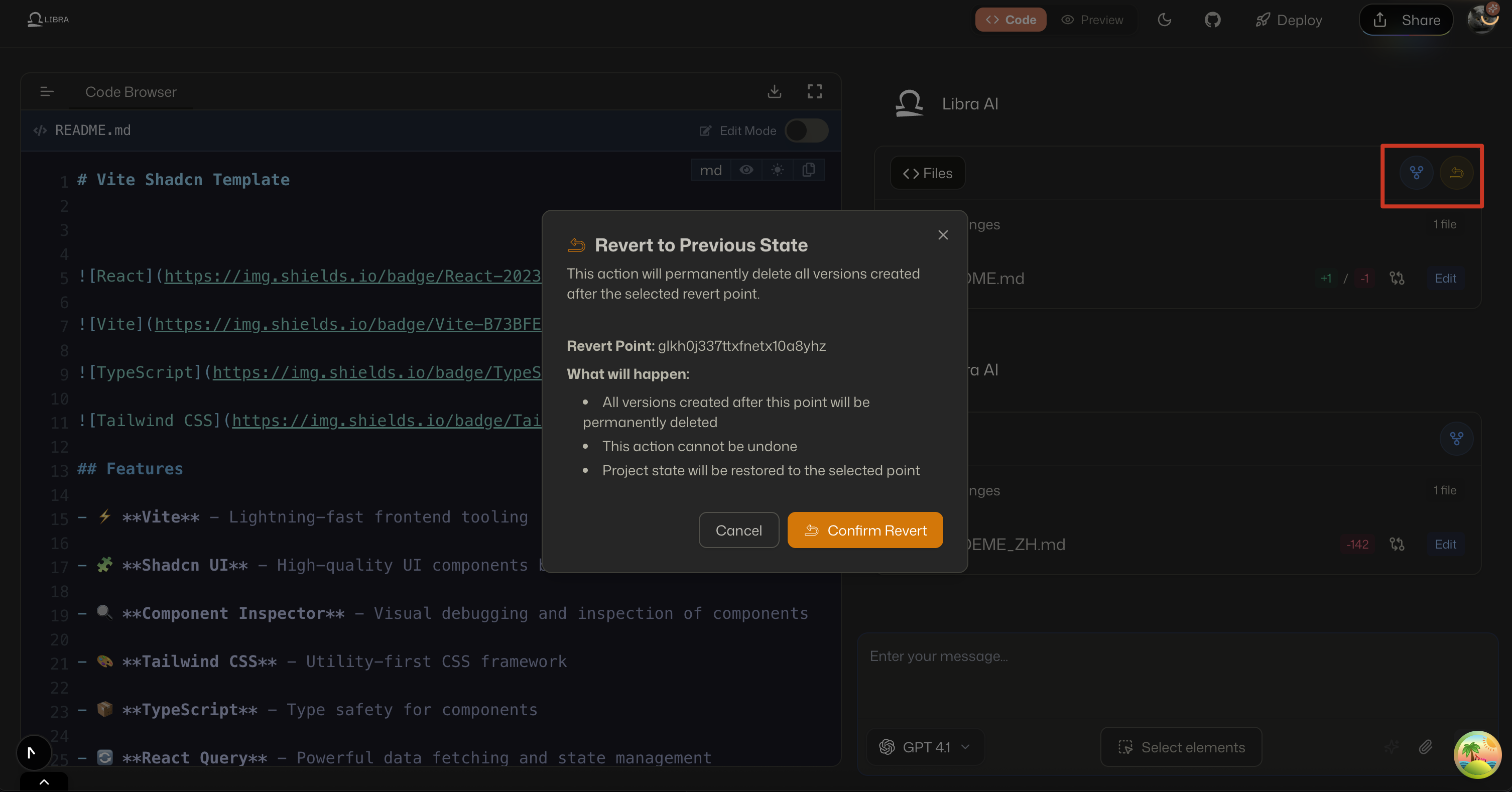
⚠️ Important: Once you go back, you can't undo it! All the versions that came after will be permanently deleted.
Trying Different Ideas Safely
Want to keep your current version AND try something from an old version? Here's how:
- Find the old version you like
- Click "Duplicate" to make a copy as a new project
- Now you have both - work on whichever you want!
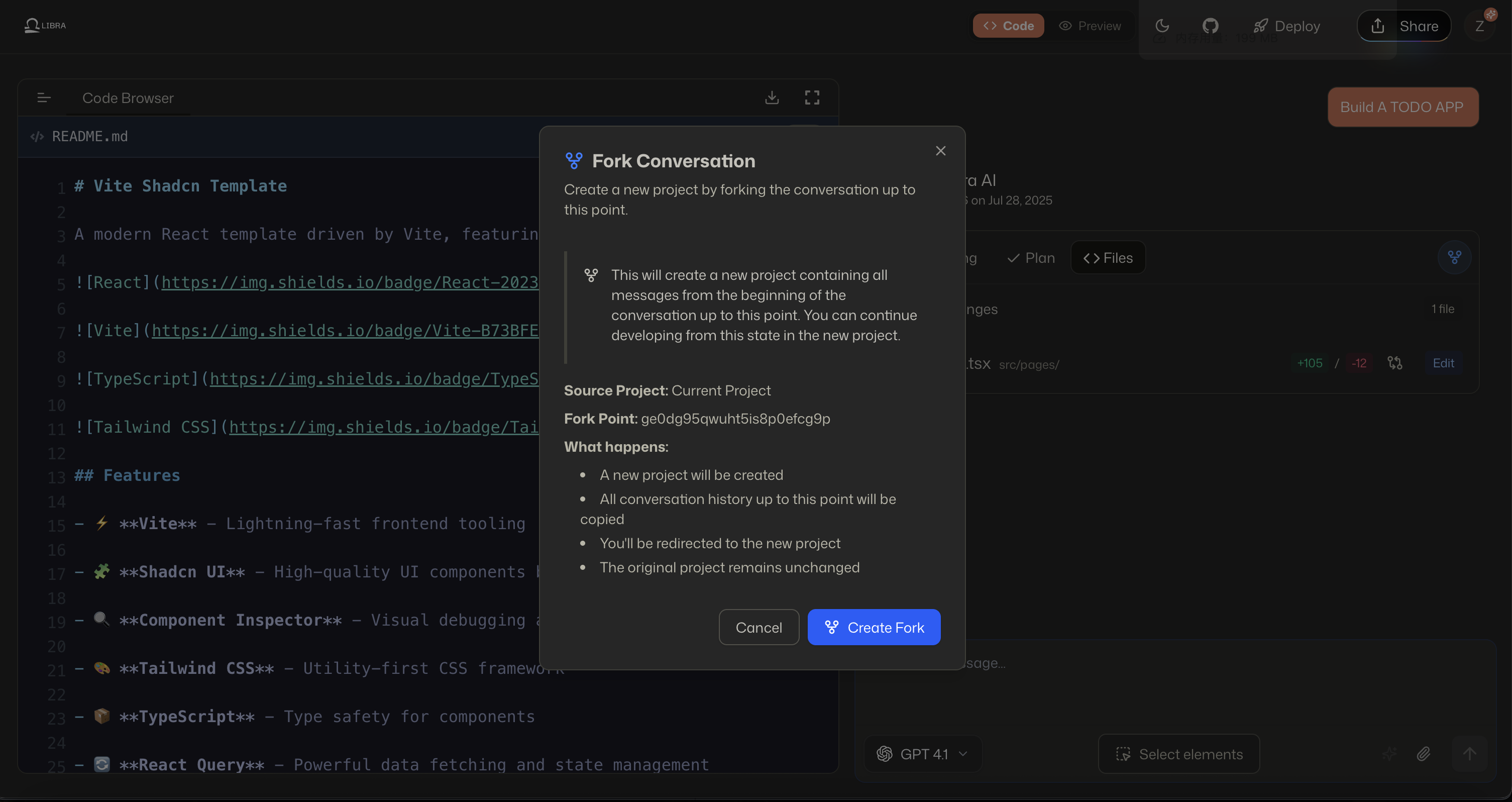
💡 Tip: Making copies is perfect when you want to try different ideas without losing your current work.
Tips for Success
1. Make Small Changes
Ask for one thing at a time instead of many changes at once. This way, each version is easy to understand.
2. Double Check Before Going Back
Make sure you select the right version before clicking "Restore" - remember, you can't undo this!
3. When in Doubt, Make a Copy
If you're not sure, make a copy instead of going back. This way you keep everything safe!